
Membership · in Adam's Academy
Fretboard Diagrams
Build any chord voicing or fretboard map Adam teaches, and lay them out into practice sheets you can print, share and hand to a student.
Try it in the Academy → How to use it
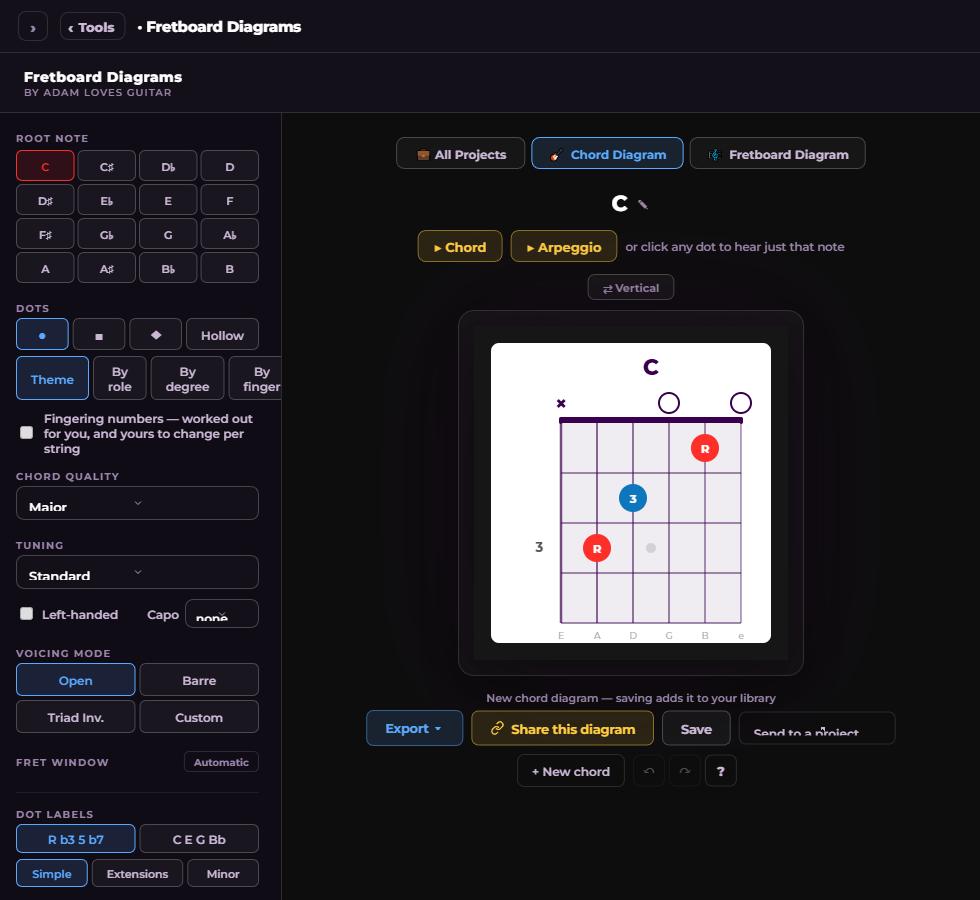
This is the tool Adam's own books are drawn with. A chord box or a fretboard map takes a few presses; a whole handout (a page of CAGED shapes, a scale in five positions with a caption under each) takes a few minutes and prints clean.
Everything a teacher asks for is here: any tuning, left-handed necks, a capo drawn where it sits, fingering numbers worked out for you, colours by role or degree, hollow squares for a black-and-white page, notes written into the drawing, and a page builder that lays it all out on A4 or US Letter. Every change can be taken back with Ctrl+Z.
Who it is for. Teachers making handouts, players keeping a book of their own shapes, and anyone who has ever drawn a chord box on a napkin.
What opens it. Comes with the Academy membership. Without it you can look around and take the tour; the editor opens the moment you join.
How to use it
- 1
Start a chord
Press Chord Diagram. Pick the root and the quality, from triads to sevenths, sixths, ninths, elevenths, thirteenths and the altered chords. Voicing Mode chooses how it is played: Open, Barre (the five CAGED shapes), Triad Inv. (inversions across the string sets) or Custom, where you drag the dots yourself. Press Chord or Arpeggio to hear it.
- 2
Shape the picture
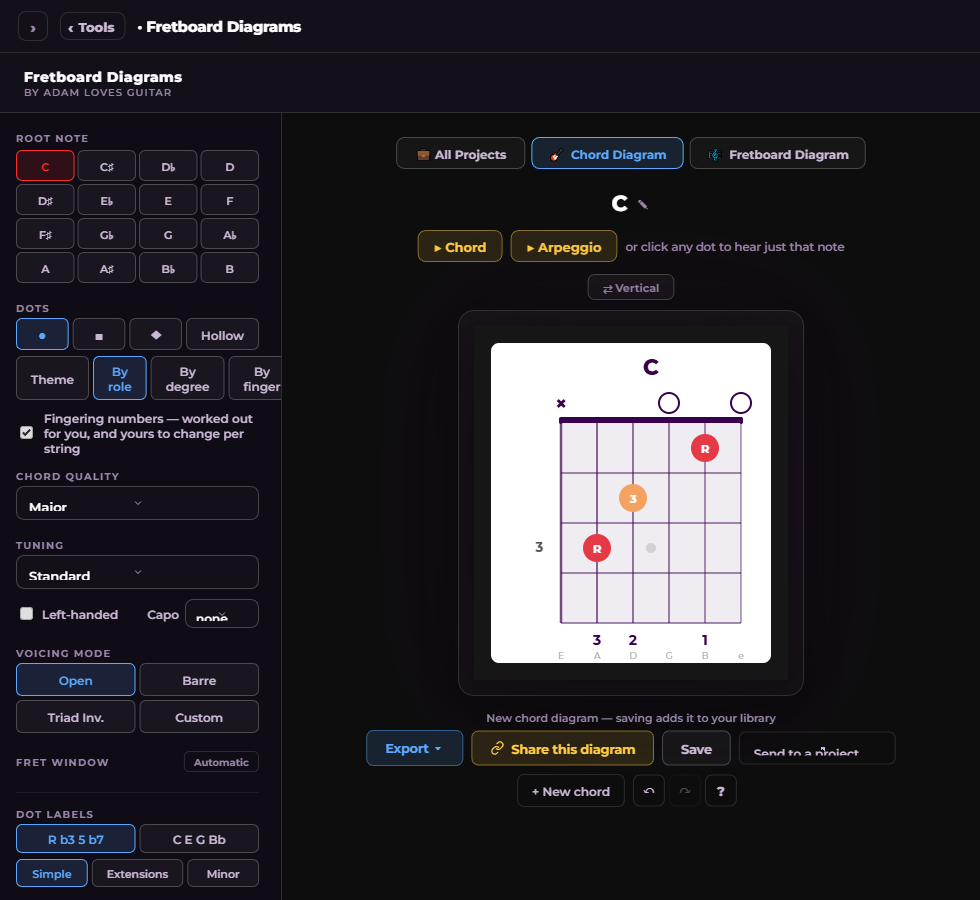
Dots can be round, square or diamond, filled or hollow. Colour them by the theme, by role (root, third, fifth, seventh), by degree or by finger. Tick Fingering numbers and a sensible left hand appears under the box, yours to change per string. Labels read as intervals or note names, in the simple, extensions or minor vocabulary.
- 3
Tuning, left-handed, capo
Pick a tuning (the tuner's presets, or six note names typed in) and the string names and every note follow. Left-handed flips the strings. Set a capo and it is drawn where it sits, with the shape above it and the fret markers reading the real fret numbers, so a D shape at capo 2 reads as the E it sounds.
- 4
A whole batch at once
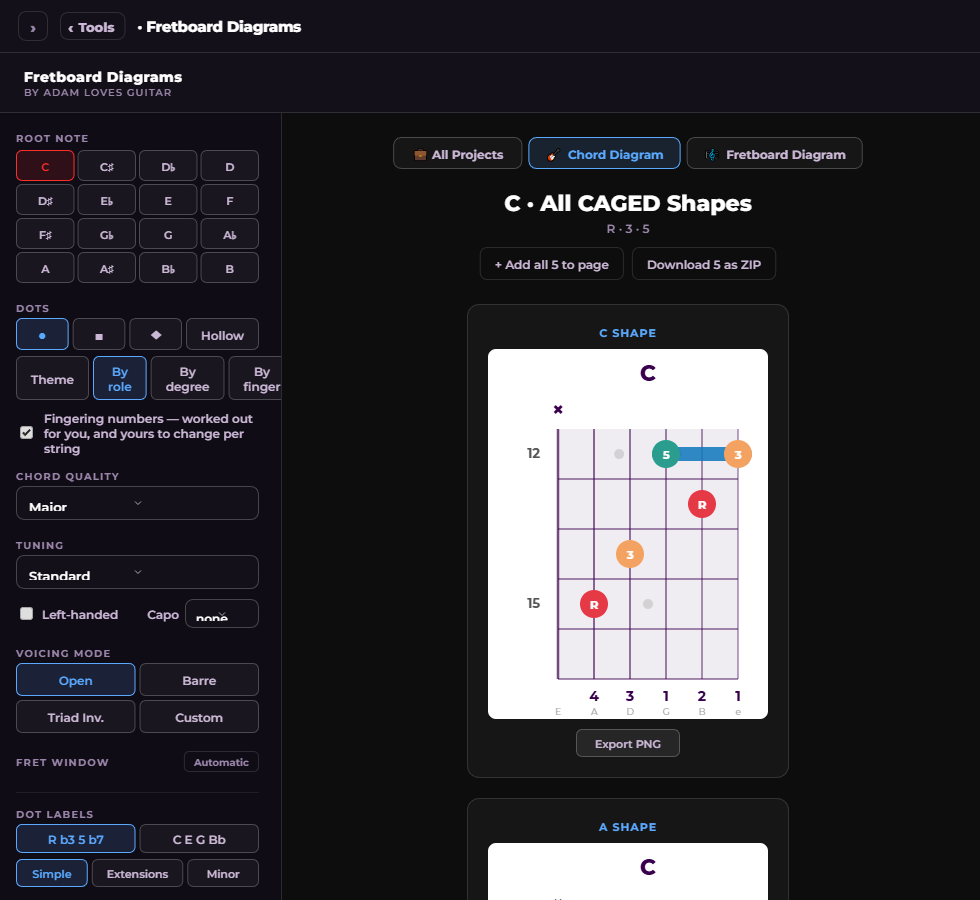
Batch CAGED draws all five shapes of the chord side by side; in Triad Inv. mode, Batch Inversions draws all twelve. Add all to page lays them out on a grid across the page; Download as ZIP packs them as PNGs with a manifest listing every file.
- 5
Map a scale on the neck
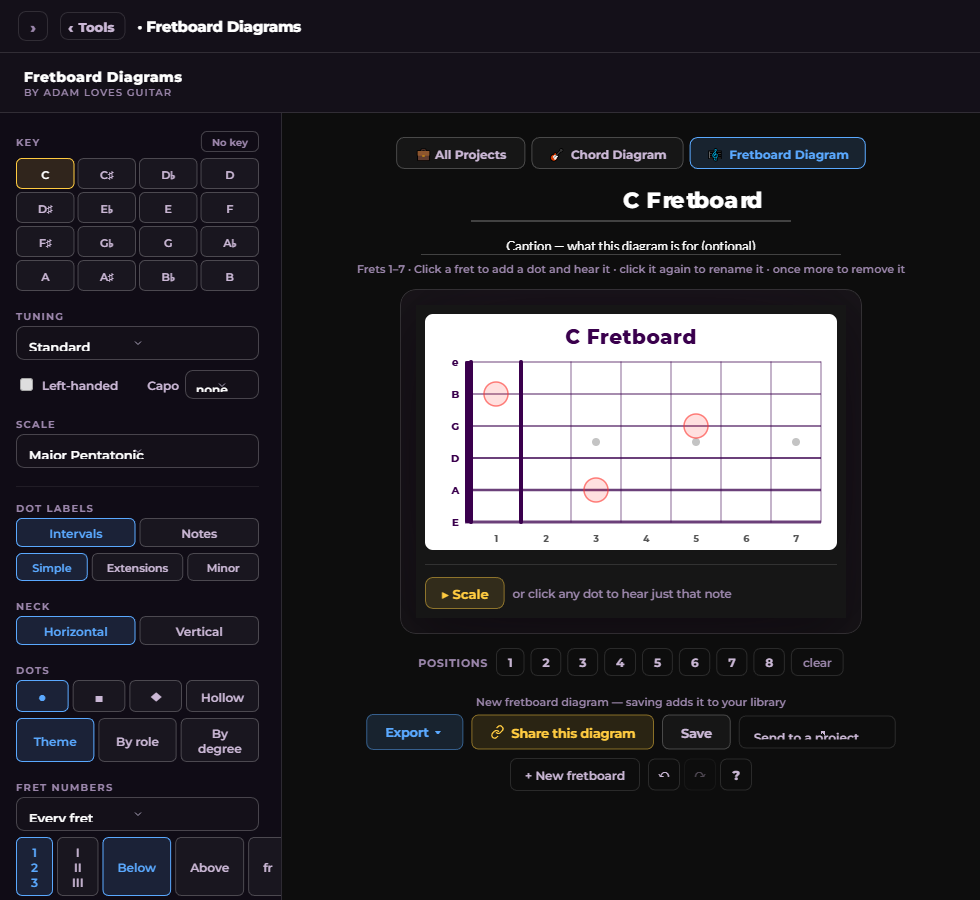
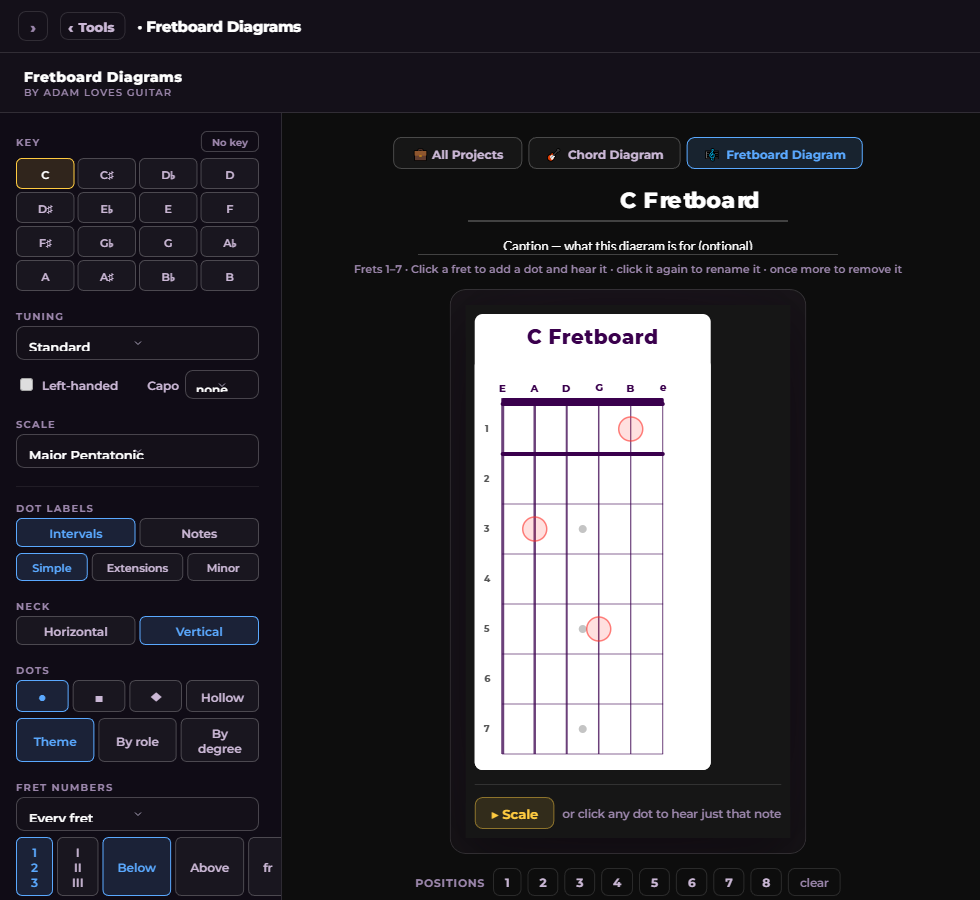
Press Fretboard Diagram. Pick the key and the scale, then press the Positions chips to fill the neck with the scale in that position. No clicking notes one at a time. Click any fret to add a dot and hear it; click it again to rename it; once more to remove it. Bold a fret line to divide the neck into triads. Set the window with Start Fret and Visible Frets.
- 6
Make it yours
String marks: press the spot beside a string name to mark it open or muted. Notes: Add a note and drag it anywhere in the drawing. It prints, exports and shares. Fret numbers: every fret, inlays only or the first; figures or Roman numerals; above or below. The chord layer drops a chord's tones onto the neck over the scale. And the neck can stand up: Vertical draws it nut-at-the-top.
- 7
Build the handout
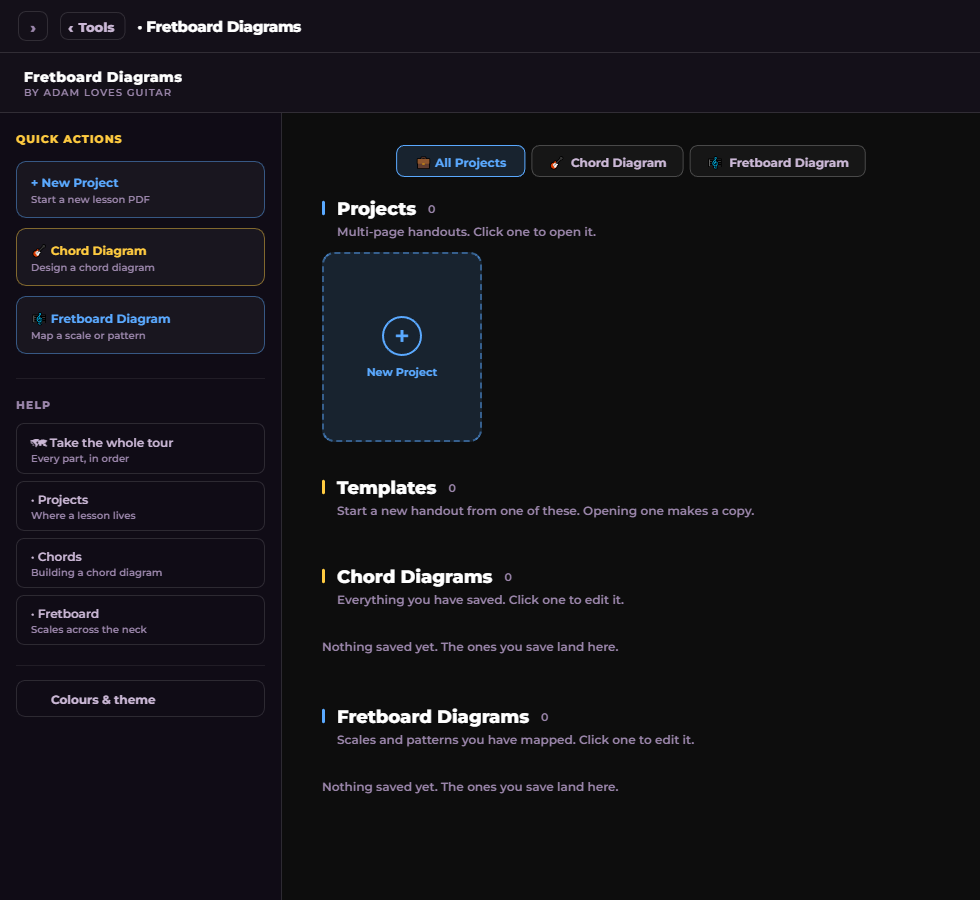
New Project starts a page. Send any chord or neck to it, or Add to PDF. Drag items where you want them; the arrow keys nudge a selected item a millimetre, Shift makes it five, Ctrl+D duplicates, Delete removes. Add headings, body text and dividers. Choose A4 or US Letter. Mark a project as a template and new handouts start from a copy of it. It saves itself as you work.
- 8
Export and share
PNG at 2×, 3×, 4× or 6×, transparent PNG for slides and video, SVG for print, JPG, PDF of the whole handout, or a ZIP of every picture on the page with a manifest.csv naming each one. Share this diagram makes a link anyone can open in a browser with no account; a partner code rides along with it.
Adam's tips
- Ctrl+Z takes back anything; a slider drag undoes in one press. Ctrl+S saves. Press ? for the whole list of keys.
- New diagrams save themselves as drafts after the first edit, so a closed tab loses nothing. Press Save to name one properly.
- For a black-and-white handout, switch the dots to hollow squares for one voice and filled circles for another. It reads on paper.
- Make one handout you like, mark it as a template, and start every lesson sheet from it. The header, the footer and your layout come along.
- Use Extensions in Dot Labels when a chord chart calls a note a ♭9 or ♯11. The neck then shows what the note is doing in the chord as well as its name.
Questions people ask
- Is it members only?
- Yes. Everyone can look and take the tour; the editor and the exports come with the Academy membership.
- Does it work on a phone?
- It is built for a laptop or a tablet, because a page builder wants the room. Diagrams you share open fine on any phone.
- Can I use it in a tuning other than standard?
- Any tuning: the presets or six names you type. The open-chord table and the CAGED shapes are standard-tuning facts, so in another tuning the editor shows a computed voicing and says so; triads and the neck work in any tuning.
- Where do my diagrams live?
- In your Academy library, on every device you sign in on. The library shows projects, templates, chords and necks separately.
- What is in the ZIP?
- Every picture on the page as PNG or JPG, in chords and fretboards folders, plus manifest.csv: file, page, title, timecode, position on the page, and the chord's root, quality and voicing.
Try it now
Comes with the Academy membership. Without it you can look around and take the tour; the editor opens the moment you join.
Open Fretboard Diagrams in the Academy → What the membership includes
Already a member? Go straight to the tool.
Share this guide
The caption and the teaser below are written to be lifted as they are.
The tool Adam's books are drawn with is in the Academy. Any chord in any voicing, tuning or capo. Scale maps with your own labels and notes. A page of CAGED shapes in one press. Printable handouts on A4 or Letter. Here is how to use it.
Draw the handout in five minutes
Fretboard Diagrams builds chord boxes and scale maps the way Adam's books are drawn, then lays them out on a page you can print, share or export. New this week: any tuning, a capo drawn where it sits, fingering numbers, colours by role, batch pages and templates. Here is the full guide.
The video walkthrough
Coming soon. It follows this script, about 2.1 minutes.
- 10sOpen. Tools, Fretboard Diagrams. Chord Diagram. Root C, Major, Open.
- 25sShape it. Square dots, hollow. Colour by role: root, third, fifth. Fingering numbers on. Now a capo at 2: drawn where it sits, markers reading the real frets.
- 20sBatch. Batch CAGED, all five shapes. Add all to page. There is your first handout.
- 25sThe neck. Fretboard Diagram. Key of A, minor pentatonic, press Position 1. Click a fret to add a note, again to name it. Bold fret 5. Add a note and drag it.
- 20sThe page. New Project. Send the neck to it. Arrow keys nudge, Shift for five. Letter or A4. Export PDF.
- 15sShare and undo. Share this diagram: a link anyone can open. And Ctrl+Z, always, for anything.
- 10sInto the Academy. This one comes with the membership, along with everything else in the Academy. The tour inside the tool walks the whole thing.
The other tools
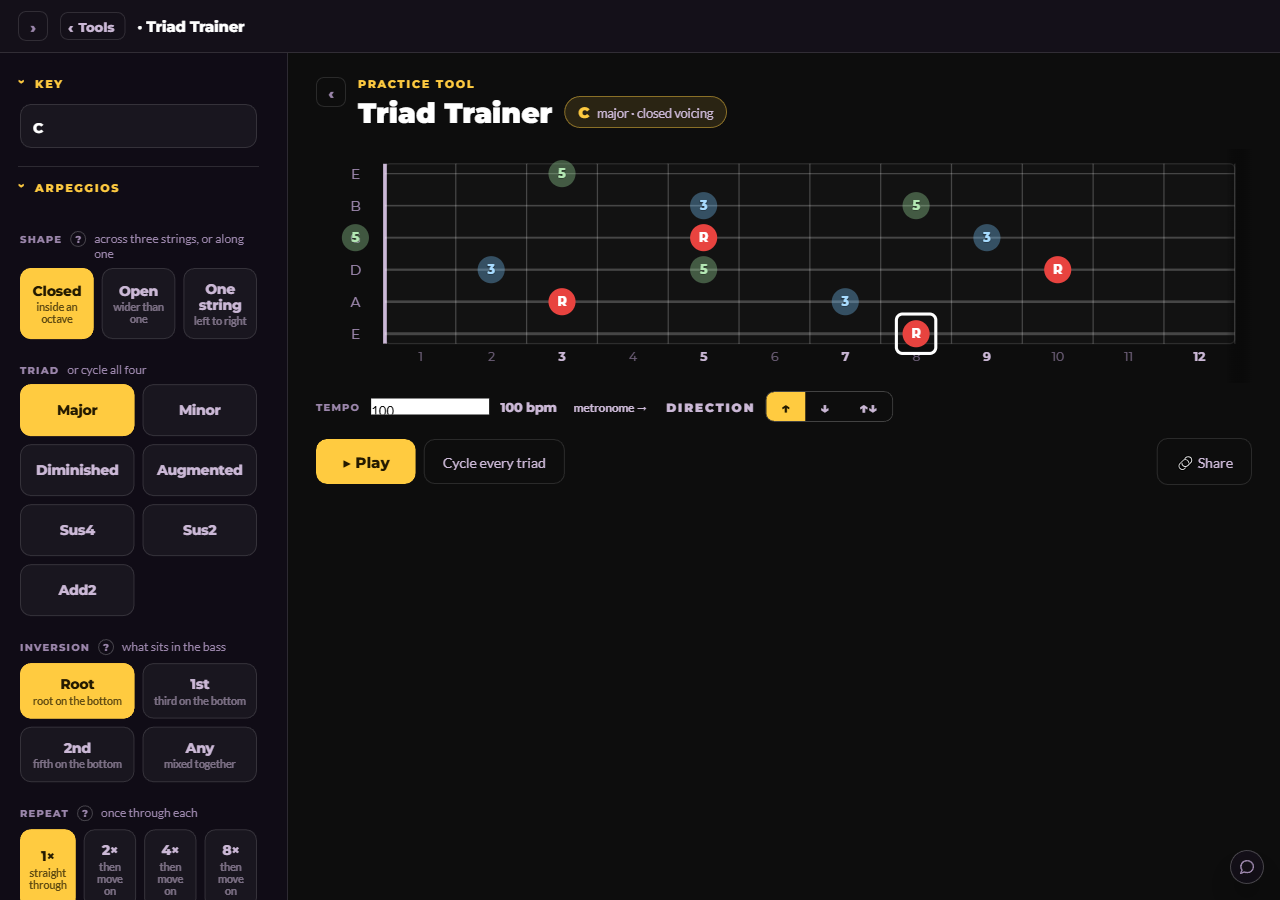 The Triad TrainerTriads everywhere on the neck: every key, every inversion, closed and open voicings, and along a single string.
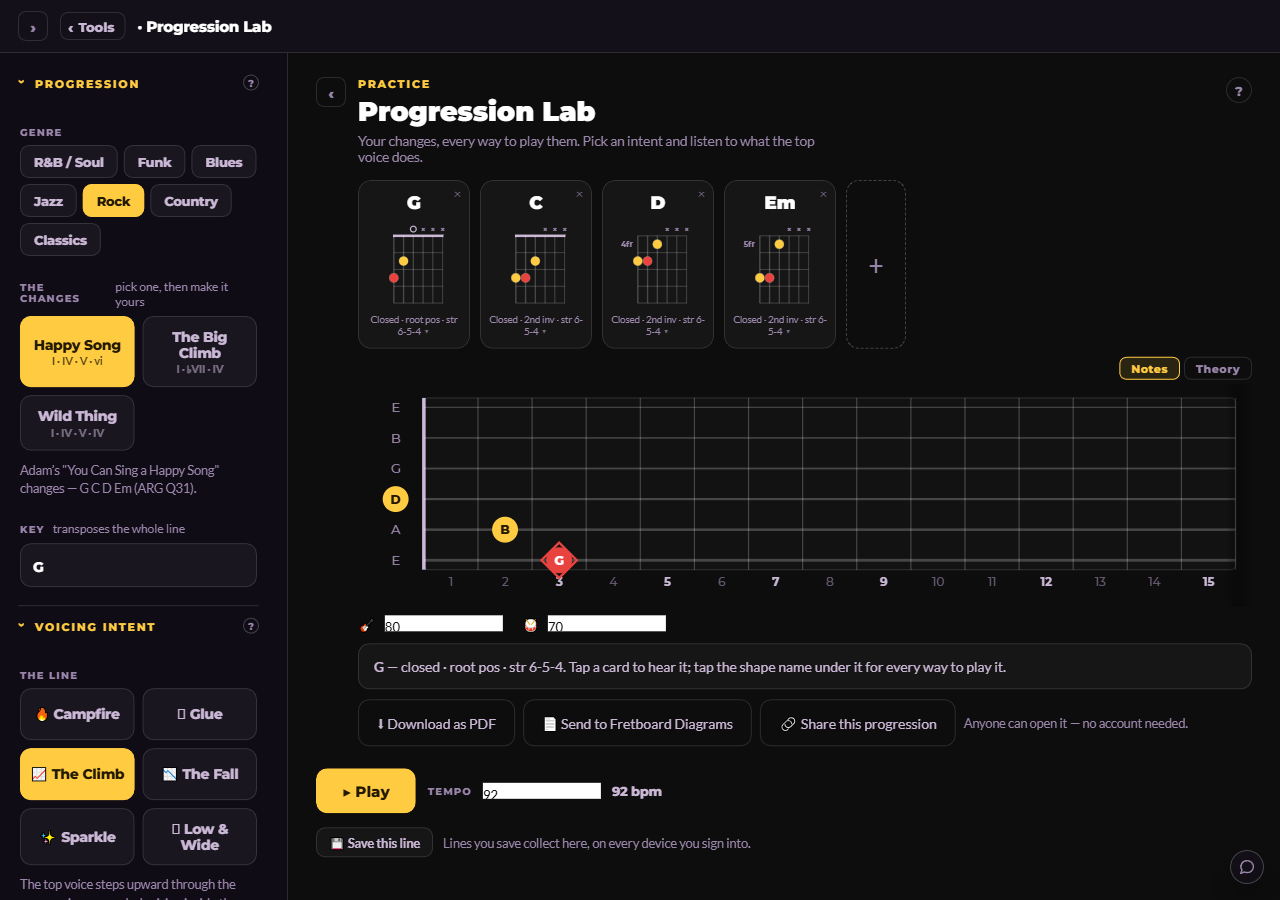 The Progression LabWrite any chord progression and hear it played back with a strum pattern, swing, and a drummer behind you.
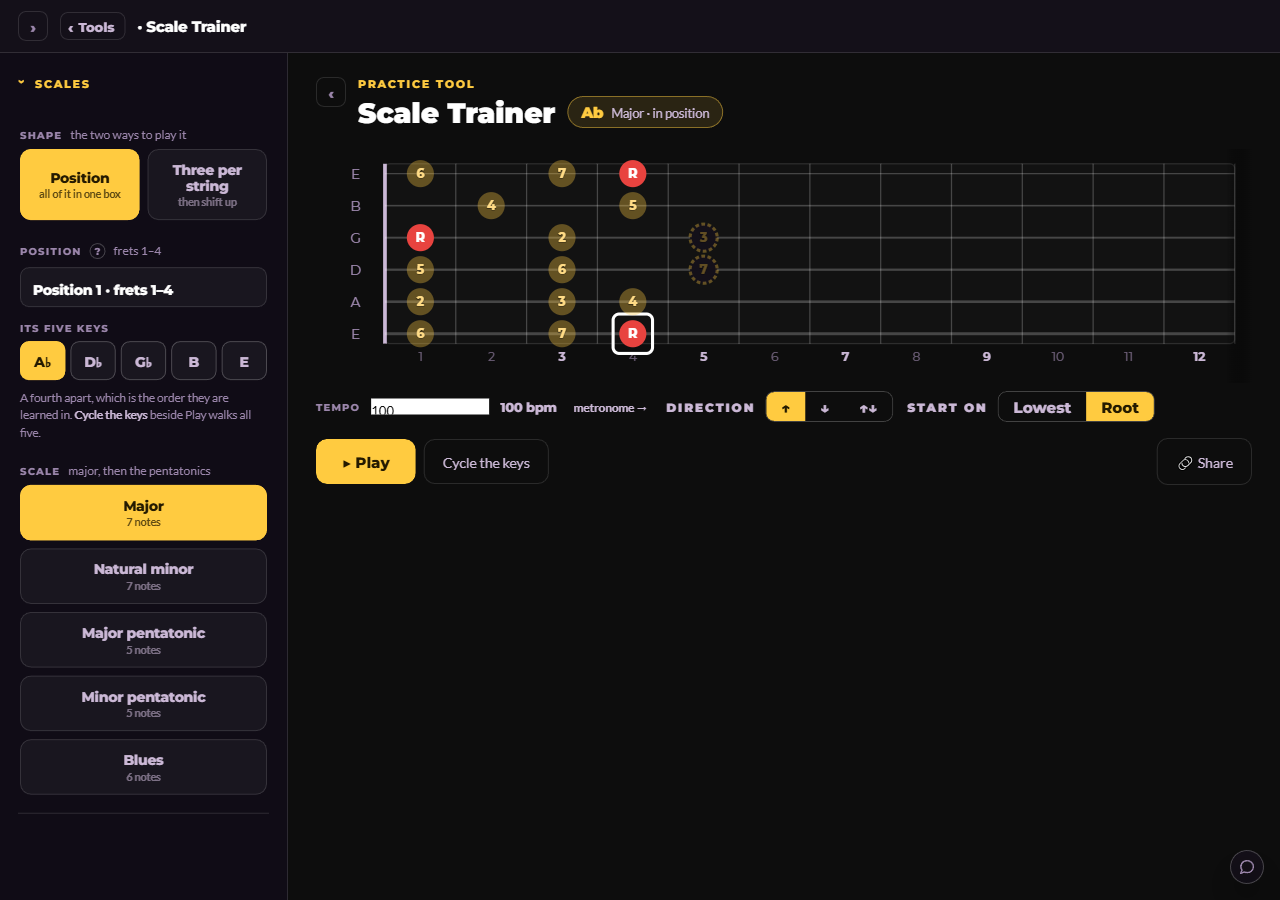 The Scale TrainerEvery scale, in every key, in the positions Adam teaches them in, played back at your tempo while the neck shows you where you are.